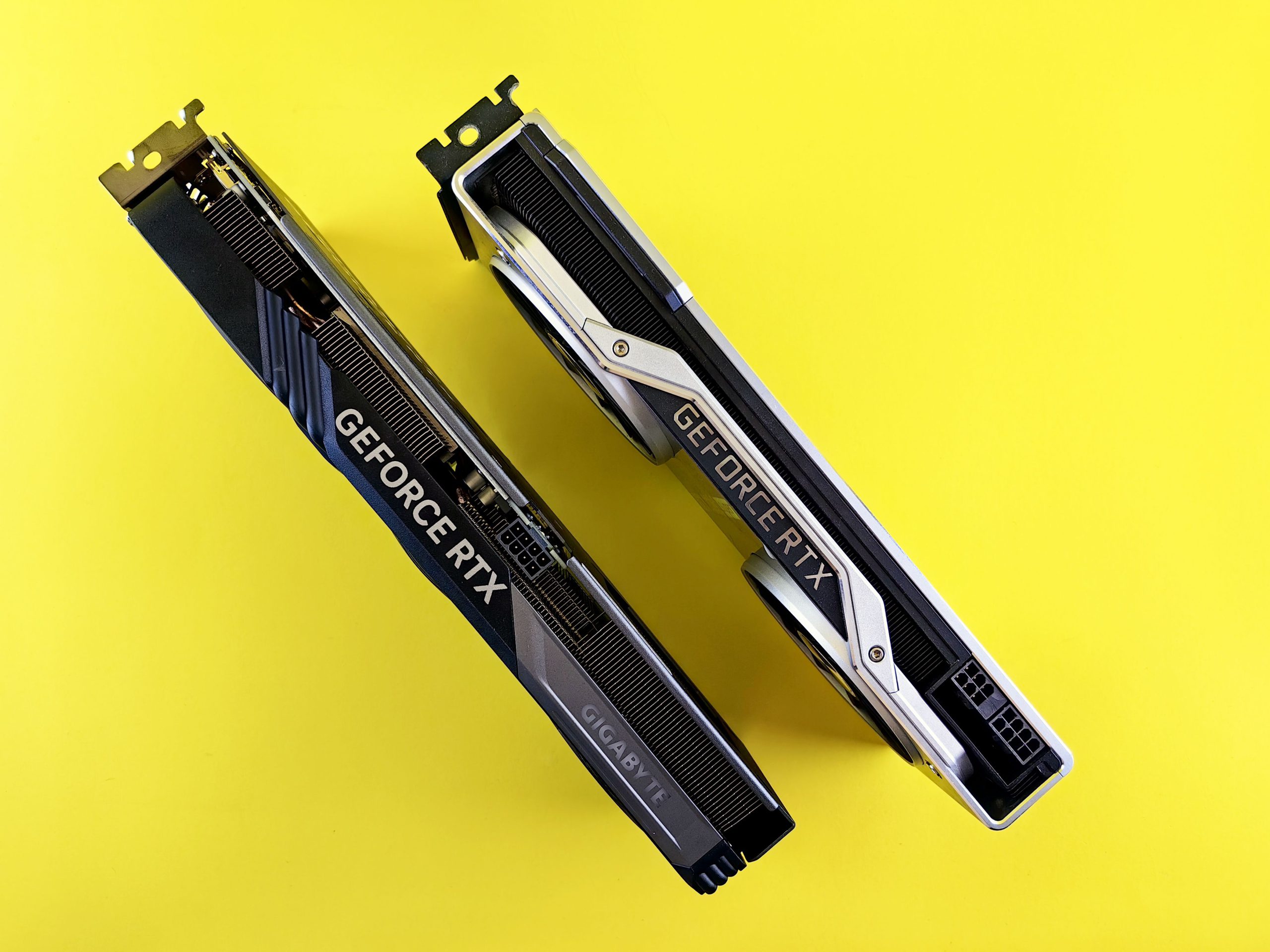
The launch of a new graphics card generation is always met with immense excitement, and the NVIDIA GeForce RTX 5060 is no exception. Offering next-gen architecture and impressive performance-per-watt metrics, it has quickly become a go-to choice for budget-conscious gamers and creators. However, early adopters have recently run into a frustrating, critical issue: a complete black screen and system boot failure when utilizing the DisplayPort (DP) connection.
If you just installed your brand-new RTX 5060, connected it via DisplayPort, and were greeted by a lifeless black screen and a motherboard error LED, you are not alone. Fortunately, this is not a hardware defect that requires an RMA. It is a known firmware-level bug, and NVIDIA has already released a definitive fix.
Here is a comprehensive, deep-dive breakdown of what causes this bug and exactly how to fix it.
Understanding the Bug: Symptoms and Causes
The issue primarily manifests during a cold boot or when waking the PC from a sleep state. Users have reported a specific set of symptoms that can easily be mistaken for a dead graphics card (DOA):
-
The Black Screen Dilemma: Upon pressing the power button, the monitor detects a connection but displays no signal, remaining completely black.
-
Boot Failure (Post Loop / VGA LED): The system fails to pass the Power-On Self-Test (POST). On many modern motherboards, the diagnostic VGA LED will light up solid red or white, indicating that the system cannot detect or initialize the display output device.
-
The HDMI Loophole: Curiously, if the user switches from a DisplayPort cable to an HDMI cable, the system boots up perfectly fine, bypassing the glitch entirely.
What is causing this?
The root cause lies within the card’s VBIOS (Video BIOS) or base firmware. During the initial boot sequence, the motherboard’s UEFI/BIOS communicates with the GPU’s firmware to establish a display handshake via DisplayPort. Due to a timing bug or handshake protocol error in the early batch of RTX 5060 firmware, this communication fails. Because the motherboard thinks no functional display routing is available, it halts the boot process entirely as a safety measure.
The Solution: Updating the VBIOS / Firmware
Because this is a fundamental firmware handshake issue, standard Windows driver updates (via GeForce Experience or the NVIDIA app) will not resolve it. The fix requires flashing a firmware update directly to the GPU’s VBIOS.
NVIDIA has recognized this issue and promptly released an official GPU Firmware Update Tool specifically designed to patch this DisplayPort bug.
Follow this step-by-step guide to safely update your RTX 5060 firmware and restore full DisplayPort functionality.
Step-by-Step Guide to Fix the RTX 5060 DisplayPort Bug
⚠️ Important Safety Note: Do not turn off your PC, restart it, or unplug the power cable while the firmware update is actively running. A interrupted VBIOS flash can permanently corrupt your graphics card.
Step 1: Establish a Temporary Display Connection
Since your DisplayPort connection is currently causing boot failures, you need an alternative way to get into Windows:
-
Turn off your PC completely.
-
Unplug the DisplayPort cable from both the monitor and the RTX 5060.
-
Connect an HDMI cable from your monitor to the HDMI port on your RTX 5060.
-
Turn on your PC. The system should now boot into Windows normally. (Alternatively, if your CPU has integrated graphics, you can plug your monitor into the motherboard’s video output temporarily).
Step 2: Download the Official NVIDIA Firmware Update Tool
-
Open your web browser and navigate to the official NVIDIA Support website.
-
Search for the “NVIDIA RTX 5060 DisplayPort Firmware Update Tool” (ensure you only download this directly from official NVIDIA domains).
-
Download the executable installer (usually an .exe file) to your desktop.
Step 3: Run the Update Tool
-
Close all background applications, especially hardware monitoring software (like MSI Afterburner, EVGA Precision, or RGB sync software), as these can interfere with the flashing process.
-
Right-click the downloaded NVIDIA firmware update tool and select “Run as administrator.”
-
The tool will automatically scan your system configuration and detect your RTX 5060.
Step 4: Confirm and Flash the VBIOS
-
The on-screen prompt will detect your current VBIOS version and inform you that an update is available to fix the DisplayPort blank screen bug.
-
Click Proceed or Update.
-
Your screen may flicker or go black for a few seconds during the process—this is completely normal as the firmware is rewritten.
-
Once the process is finished, the tool will display a success message: “Update successful. Please restart your computer.”
Step 5: Reconnect Your DisplayPort Cable
-
Shut down your PC entirely.
-
Unplug the temporary HDMI cable.
-
Plug your DisplayPort cable back into the RTX 5060 and your monitor.
-
Power on your computer.
Your system should now smoothly pass the POST sequence, the motherboard diagnostic LEDs should clear, and you will be greeted by the normal boot screen over your high-refresh-rate DisplayPort connection.
Final Thoughts
While encountering a boot-looping bug on a brand-new, current-generation graphics card can be an incredibly stressful experience, NVIDIA’s swift release of a firmware patch makes this a highly manageable fix. If you recently purchased an RTX 5060, it is highly recommended to proactively apply this VBIOS update even if you aren’t currently facing the issue, as it ensures long-term compatibility with newer DisplayPort monitors and future system upgrades.